## [C#] 기간별 폴더 정리(삭제)하기
코딩정보/C#
2020-09-15 13:18:28
* * *
안녕하세요
코딩연습생입니다~
이번 포스팅은 C# 언어로 기간별 폴더를 자동 관리하기 위한 삭제 프로그램을 만들어 볼려고 합니다
[준비과정]
1\. Form1을 생성하여 기준일을 생성할 텍스트 박스를 생성.
2\. 파일 삭제를 실행하기 위한 버튼.
[폴더 구조]
\- 내문서 -> 대상 폴더(Origin, RESULT_OK, RESULT_NG_ -> 세부 하위 폴더들 존재 -> 일자별 폴더
ex) C:\Users\Administrator\Documents\ImageLog\대상 폴더\하위 폴더
[디자인]
\- 디자인은 꼭 똑같이 하실 필요는 없습니다~
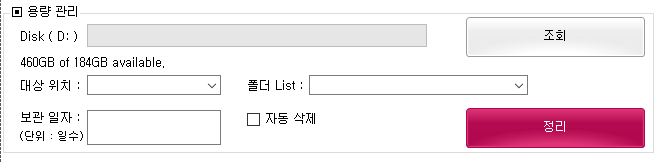
\- 대상위치는 대상 폴더를 지정하기 위한 콤보박스
\- 폴더 List 세부 하위 폴더들을 리스트화 해주는 콤보박스
[코딩]
1\. 대상 폴더를 지정한 뒤 조회 버튼을 눌러 세부 하위 폴더 리스트를 콤보박스화 시키는 부분
\- path 변수에 경로 변수는 사용하시는 환경에 다라 변경해주셔야 합니다
private void Path_Combo()
{
if (comboBox1.SelectedIndex >= 0)
{
string path = textBox_path_to_pcl_vision.Text;
path = System.IO.Path.Combine(path, "ImageLog");
path = System.IO.Path.Combine(path, comboBox1.SelectedItem.ToString());
DirectoryInfo di = new DirectoryInfo(path);
if (di.Exists == true)
{
DataTable dt = new DataTable();
dt.Columns.Add("FolderName", typeof(string));
dt.Columns.Add("FolderPath", typeof(string));
DataRow ds = null;
foreach (var file in di.GetDirectories())
{
ds = dt.NewRow();
ds["FolderName"] = file.Name;
ds["FolderPath"] = file.FullName;
dt.Rows.Add(ds);
}
comboBox2.DataSource = dt;
comboBox2.ValueMember = "FolderPath";
comboBox2.DisplayMember = "FolderName";
}
}
else
{
MessageBox.Show("대상위치를 먼저 선택해주세요.");
}
}
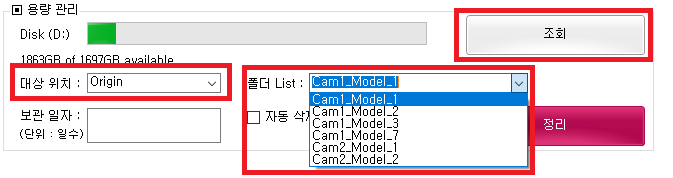
\- 대상 위치를 설정하고 조회버튼을 누루면 폴더 List 콤보박스에 하위 디렉토리 목록이 보이게 됩니다
*콤보박스에 ValueMember와 DisplayMember 사용 방법은 아래 링크를 통해 알아 보실 수 잇습니다
<https://codingman.tistory.com/119>
[ [C#] 폴더안의 파일 목록 만들기(리스트박스) 안녕하세요 코딩연습생입니다~ 요즘 코로나도 문제이지만 태풍이 너무 많이 오네요~ 짜증날
정도로ㅎㅎ 글자님들도 코로나 + 태풍 조심하시길 바랍니다 이번 포스팅은 C#으로 리스트박스(ListBox)
codingman.tistory.com ](https://codingman.tistory.com/119)
\- 구동 시킨 모습입니다
\- 이제 폴더 삭제를 하기 위한 정리 버튼을 하나 생성해주고 코딩을 해보겠습니다
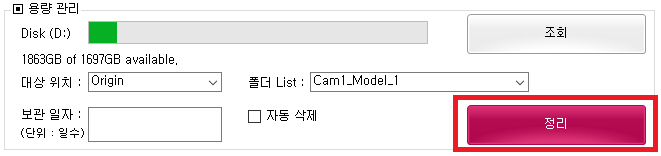
\- 정리 버튼 클릭 이벤트에 아래와 같이 코딩을 합니다
public static void deleteFolder(string folderDir)
{
try
{
Form1 form = new Form1();
//기본 일수 14일.
int deleteday = 14;
//일수를 수동 지정하였을 경우 해당 일수를 가져옴.
if (form.FolderDay_Period.Text != "")
{
deleteday = Convert.ToInt32(form.FolderDay_Period.Text);
}
DirectoryInfo di = new DirectoryInfo(folderDir);
if (di.Exists)
{
DirectoryInfo[] dirInfo = di.GetDirectories();
string IDate = DateTime.Today.AddDays(-deleteday).ToString("yyyyMMdd");
foreach (DirectoryInfo dir in dirInfo)
{
if (IDate.CompareTo(dir.LastWriteTime.ToString("yyyyMMdd")) > 0)
{
dir.Attributes = FileAttributes.Normal;
dir.Delete(true);
}
}
}
}
catch (Exception) { }
}
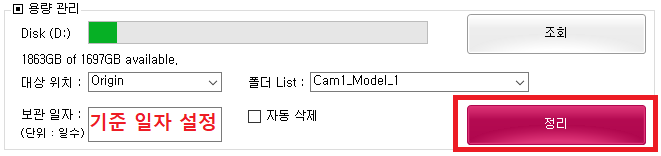
\- 기준 일자를 설정한뒤 정리 버튼을 누루면
대상위치의 하위 폴더의 자식 폴더들 중 생성기간을 기준으로 이전 폴더를 삭제 합니다
[실행]
\- 내문에서 Origin이라는 폴더에 Cam1_Model_1이라는 하위 폴더 내용을 구조는 아래와 같습니다
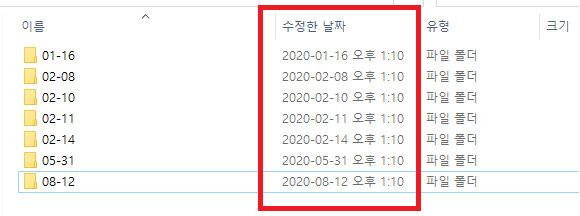
\- 정리 버튼을 누루게 되면 수정한 날짜 지금 현재(2020-09-15)이기 때문에 모두 삭제가 되어야 합니다
기준 일자 설정이 기본 14일로 지정되어 있기 때문에 별도 일자 설정을 하지 않았다면
모두 삭제가 되는것이 정상이겠죠?
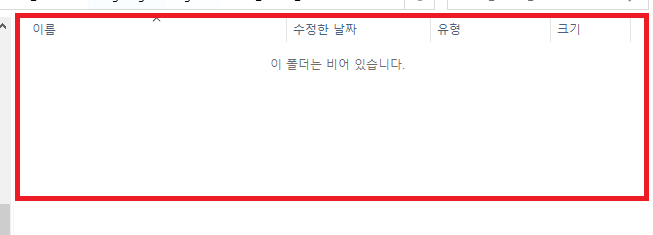
\- 정상 동작하는걸 확인 했습니다
이 루트를 반복 시행이나 타이머를 통해 자동 실행되도록 한다면 용량 부족 현상을 막을수 있습니다~
#c# #파일삭제 #폴더삭제 #하드용량관리 #하위폴더삭제 #자동폴더관리
(*No embedded English lines found. Add translations later.*)